COLLECTOR GUIDES
From wishlist to shelf: recording a new purchase
Your wishlist keeps future finds together. When a bottle arrives, you can use that wish to add the actual purchase to your collection while keeping a record of what you originally wanted.
Owners and Editors can record a wishlist purchase. Viewers can read the wishlist and its purchase history.
Screenshots use fictional tutorial records. Controls are shown as captured in October 2026.
1. Keep future bottles on your wishlist
Open the Wishlist tab to add a bottle you would like to buy. Include useful notes and a target price if you have one. You can edit and reorder wishes as your priorities change.
A wishlist entry does not add a bottle to your stock or affect your collection totals. An order or a ready-to-collect message should remain separate from the bottles you actually possess.
2. Wait until the bottle is in your hands
Once you have received or collected the bottle, find the wish and choose Purchased / add to collection.
Check the selected cabinet and enter the number of physical bottles you received. The name and notes you already recorded are pre-filled to help you get started.
For example, if you wished for one particular whisky and received two bottles, record a quantity of two. Each physical bottle gets its own collection record.
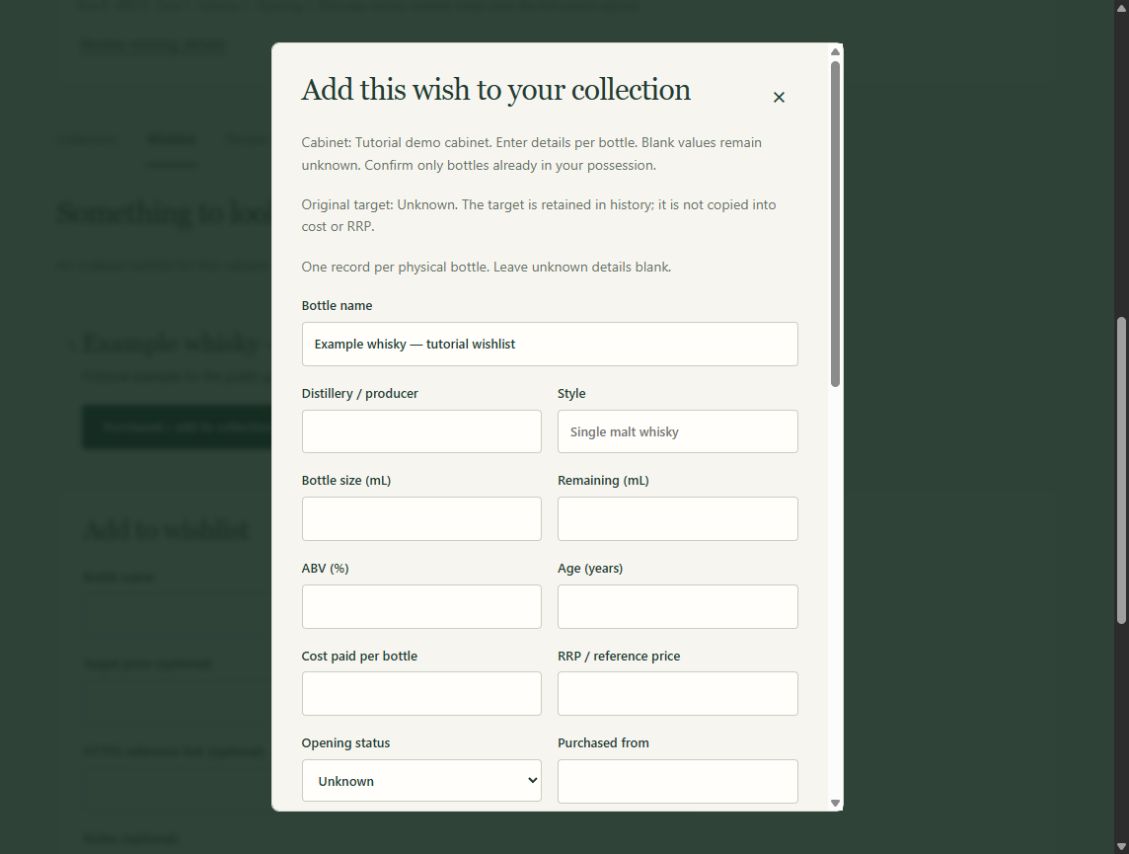
3. Confirm the details of each bottle
Enter the bottle details, including size, opening state, remaining volume, purchase cost and any purchase or received dates you know. The entered details apply to every bottle in this purchase entry.
Record the amount actually paid for each bottle. Your wishlist target price, actual cost and recommended retail price are separate pieces of information; do not copy a target into the cost field unless it was the amount you paid.
Leave unknown details blank and mark estimated remaining volume as approximate. Use a quantity greater than one only when the entered details apply to every bottle. If bottles differ, record separate entries and keep the wish active until you have recorded them all.
4. Decide what happens to the wish
Choose whether to fulfil the wish or keep it active. You might keep it active if you would like another bottle of the same release later.
Both choices preserve the original wish, target price, purchase details and links to the resulting bottles in private Wishlist purchase history.
Tick the possession confirmation only when you have actually received or collected the bottles, then complete the purchase entry.
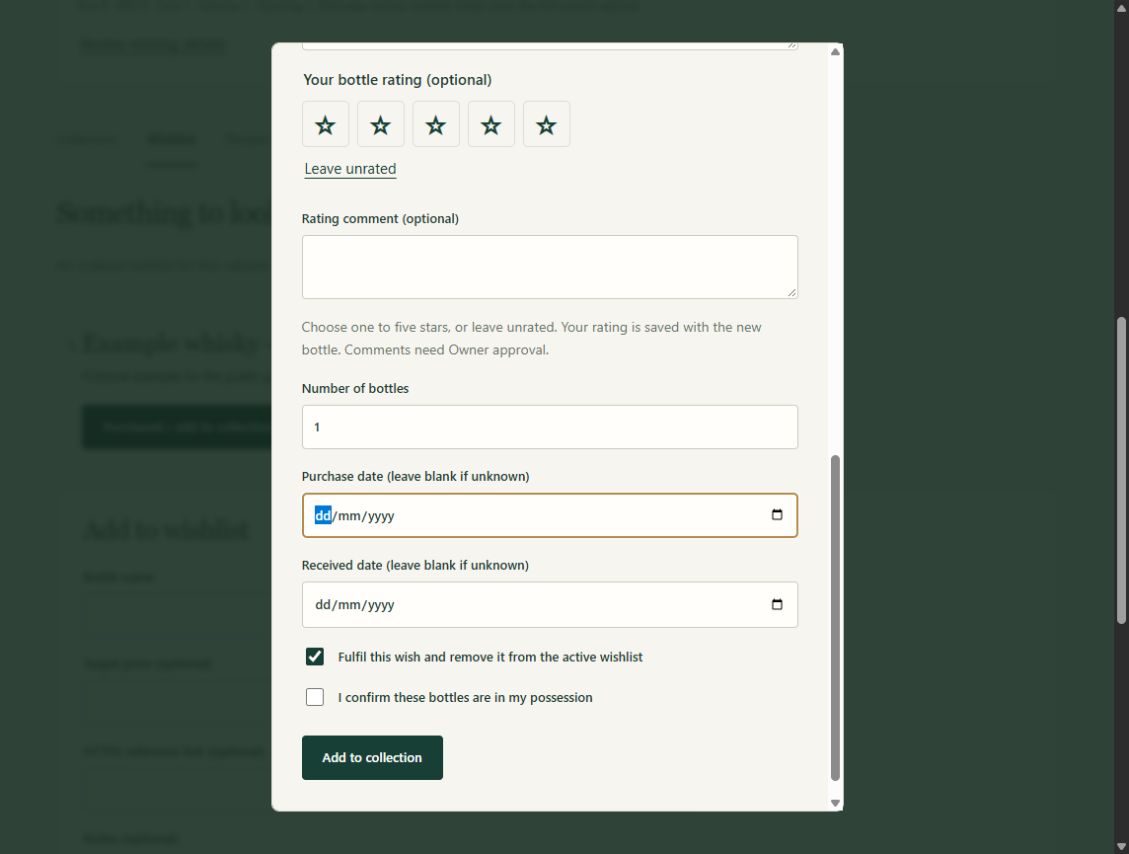
5. Check your collection
Return to the collection and check that each received bottle has its own record. Add photos or further details when convenient.
If the network result is uncertain, use the workflow’s safe retry without changing the details. Avoid starting a separate purchase entry while you are unsure whether the first one completed.
Your collection now records what is on the shelf, and purchase history keeps the connection to the wish that started it.
Next: Add photos and finish your first bottle record, or keep an offline copy.